
Local-only privacy
Captured here. Saved here.
Capture and editing happen in your browser. Your pages and screenshots are never uploaded.
- Screenshot uploads
- None
- Accounts
- Not required
- Extension analytics
- Not included
Capture full pages, crop the result, add annotations, then export as PNG, JPEG, or PDF.
5.0 on Chrome Web StoreFull pageCapture beyond the fold
Crop & annotateRefine before saving
PNG, JPEG, PDFExport what you need
Local processingNo screenshot uploads
Capture review
Crop the page, mark the important parts, hide sensitive details, and choose the file you need.
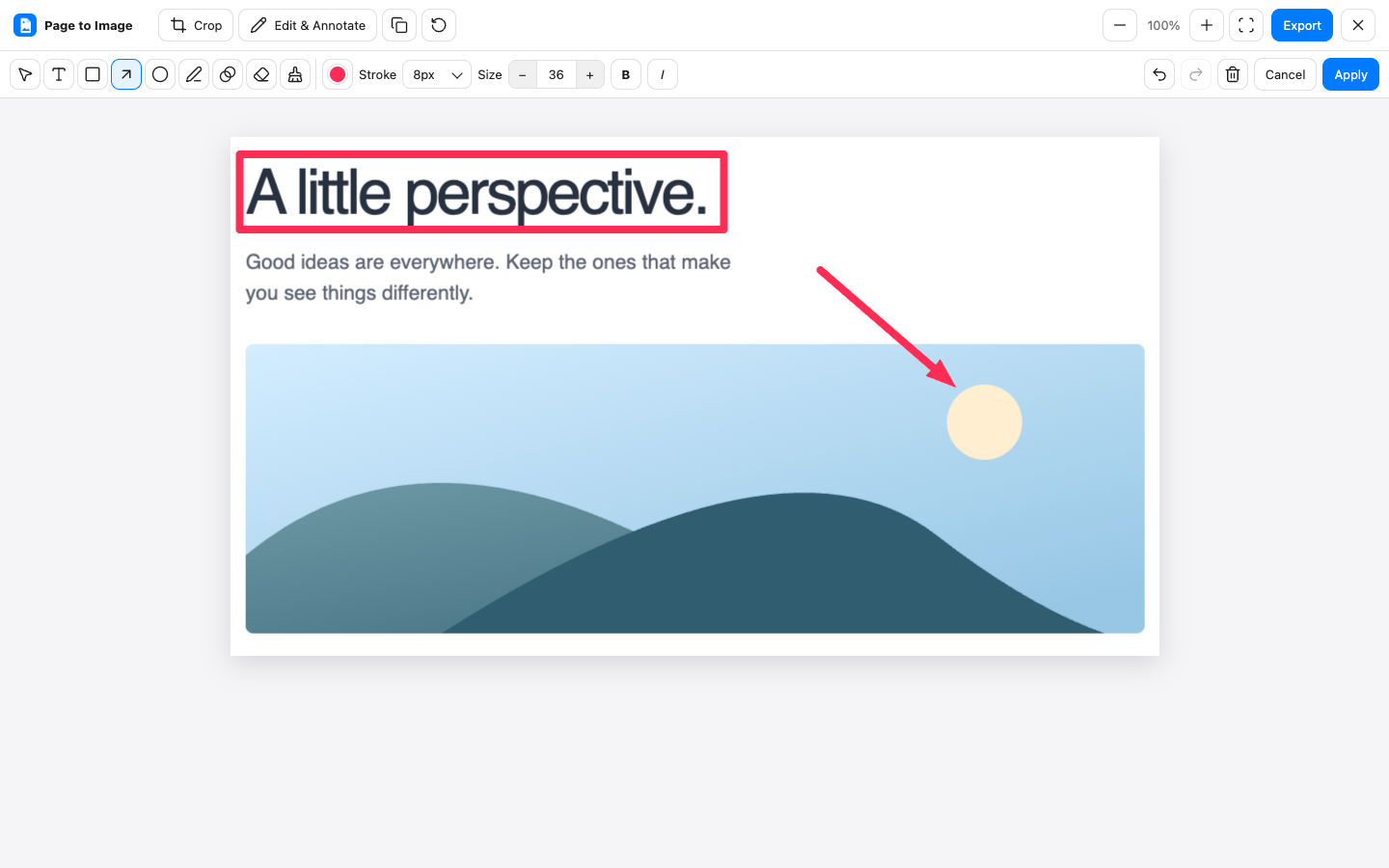
Real full-page capture
Page to Image captures the complete document, not just the visible window. It follows pages that scroll inside their own content area too.
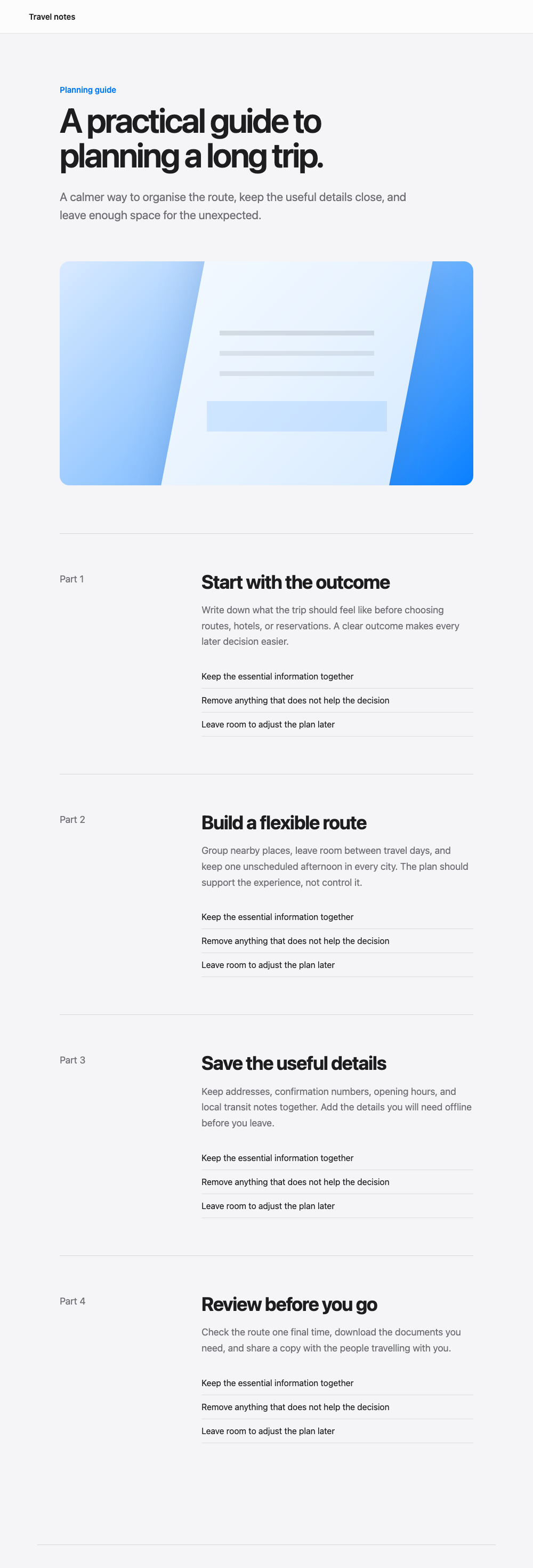
One page, captured from top to bottom.
Local-only privacy
Capture and editing happen in your browser. Your pages and screenshots are never uploaded.
Cleaner captures
Optionally hide the interface elements that cover the content you want to save.

The page is restored when the capture finishes.
No silent downscaling
Large screenshots keep the detail you captured. Page to Image does not quietly shrink text and images to make them fit.
PNG can stream into one full-resolution image, or save numbered parts when needed. Very large captures support PNG and PDF export; editing, copying, and JPEG are unavailable beyond the browser’s editing limit.
Made for everyday pages
Capture conversations, documents, issue threads, reference articles, and stories as they appear in your browser.
See capture guides for compatible sitesHow it works
Open Page to Image, choose Full page, Visible area, or Selected area, and press Capture page.
Crop, annotate, draw, blur sensitive details, or leave the capture exactly as it is.
Copy the image or export it to Downloads as PNG, JPEG, or PDF.
FAQ
Install Page to Image, open the page you want to save, and press Capture page. Your capture opens in a local review tab where you can crop, annotate, copy, or export it.
Yes. Full page mode captures the whole document, including everything below the fold, and combines it into one image whenever the selected format supports it.
No. Captures are processed locally in your browser. Page contents and images never leave your device. The extension sends only an anonymous Installation identifier and licence-status requests for access verification.
Page to Image never quietly shrinks the result. Very tall captures use full-resolution PNG or PDF export. When needed, PNG files are saved in numbered parts. Captures beyond the editing limit open in export-only mode, with crop, annotation, clipboard, and JPEG unavailable.
Yes. Turn on Hide sticky elements to remove cookie banners, sticky headers, dialogs, and floating buttons during capture. The page is restored afterward.
Yes. Capture review lets you crop, add text, draw, highlight with shapes and arrows, blur details, erase changes, and undo or redo edits before export. Very large captures that exceed browser editing limits open in export-only mode.
Yes. Choose PDF in Capture review to export the captured page as a PDF. PNG and JPEG exports are available from the same dialog.
Browsers block extensions from capturing internal pages such as settings, extension stores, and developer tools. Page to Image explains the restriction instead of failing silently.
Add Page to Image and turn the next webpage into a finished file.