How to screenshot content that scrolls inside a page
Web apps such as Notion, chat tools, email clients, and dashboards often keep the page itself still and scroll a panel inside it. Standard full-page screenshots then capture only one screen of content. Here is why that happens and how to capture the whole panel.
Browser tools such as Chrome’s Capture full size screenshot measure the height of the document. When an app places its content in a panel with its own scroll bar, the document is only as tall as the window, so the tool captures exactly one screen. The rest of the conversation, document, or table stays hidden inside the panel.
Capture the scrolling panel with Page to Image
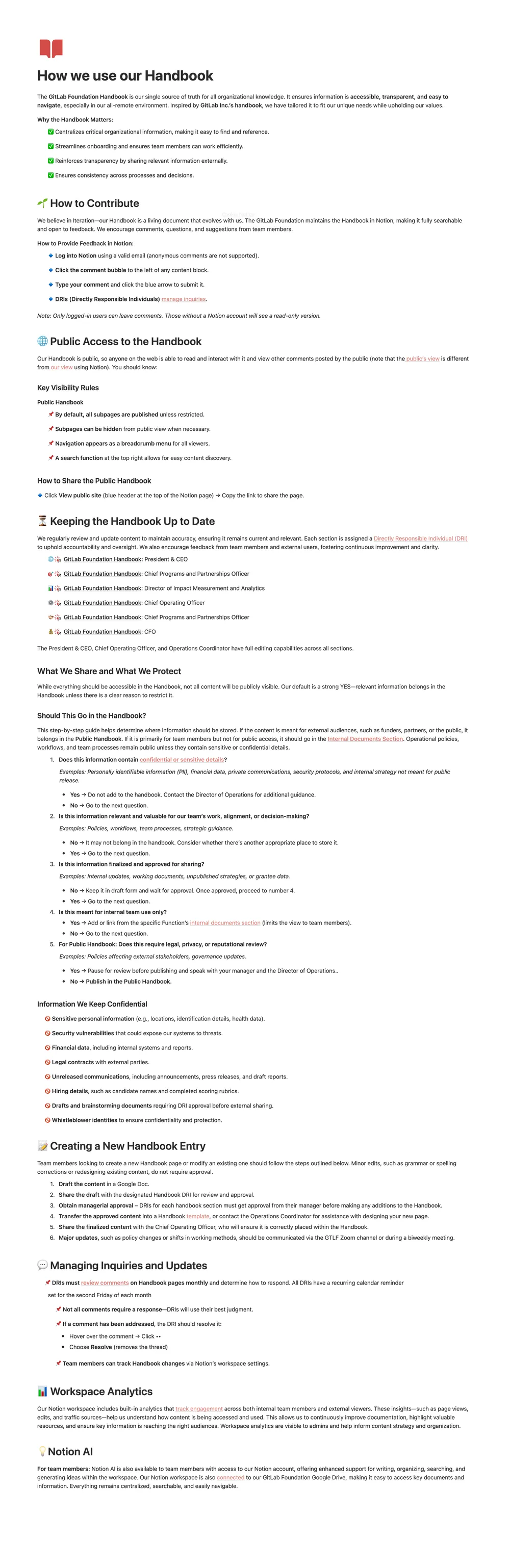
Open the page, choose Full page, and press Capture page. Page to Image detects the main scrolling area, scrolls it from top to bottom, and joins the result into one image. The capture shown here is a public Notion page whose content scrolls inside its own panel, saved from the title to the last section.
Load the content first
Many apps only render messages or rows near the visible area. Scroll through the panel once before capturing so the content exists in the page, and expand any collapsed sections you want to include. A capture cannot include content that the app has not loaded.
Export a file that is easy to share
Crop the result to the useful part, blur private details, and export PNG for crisp text or PDF to split a long capture across pages. Very long captures keep their resolution; when they exceed what the browser can edit, they open in export-only mode with PNG and PDF available.
A Notion page that scrolls inside its own panel, captured from the title to the last section in one image.
Common questions
Why does my full-page screenshot only show one screen?
The site probably scrolls its content inside a panel instead of scrolling the page. Use a tool that follows inner scrolling areas, such as Page to Image.
Can I capture a long chat conversation?
Yes, as long as the messages are loaded in the page. Scroll through the conversation first, then capture it with Full page.
Does this work with dashboards and tables?
It works with content that scrolls vertically inside a panel. Very wide tables that scroll sideways may need several captures or a selected area.
Is Page to Image free?
Every installation includes 9 free captures with every feature. After that, annual access or a one-time lifetime purchase unlocks unlimited captures.