
How to screenshot an entire webpage on Windows

Windows’ Snipping Tool and the Print Screen key capture what is on your display. For a whole webpage, including everything below the fold, use your browser’s full-page option or an extension. Here is what works in each browser.

What Snipping Tool can capture

Snipping Tool offers rectangle, window, full-screen, and freeform snips, plus screen recording. It does not scroll a webpage for you, so a long page needs several snips. Use it for desktop apps, dialogs, and anything outside the browser.

Microsoft Edge: Screenshot

Press Ctrl+Shift+S in Edge, or open Settings and more and choose Screenshot, then choose the full-page option. You can draw on the result and save or copy it. The feature was previously called Web capture.

Chrome: DevTools full size screenshot

Press F12 to open DevTools, then Ctrl+Shift+P to open the Command Menu. Type "screenshot" and choose Capture full size screenshot. Chrome saves a PNG to your Downloads folder.

Firefox: Take Screenshot

Right-click the page, choose Take Screenshot, then Save full page.

Use an extension for crop, annotation, and PDF

Page to Image works in Edge, Chrome, and Firefox on Windows. After a full-page capture, Capture review lets you crop, add arrows, text, and shapes, blur private details, and export PNG, JPEG, or PDF. It also captures pages that scroll inside their own panel, such as web chats and document editors, which browser tools can miss.
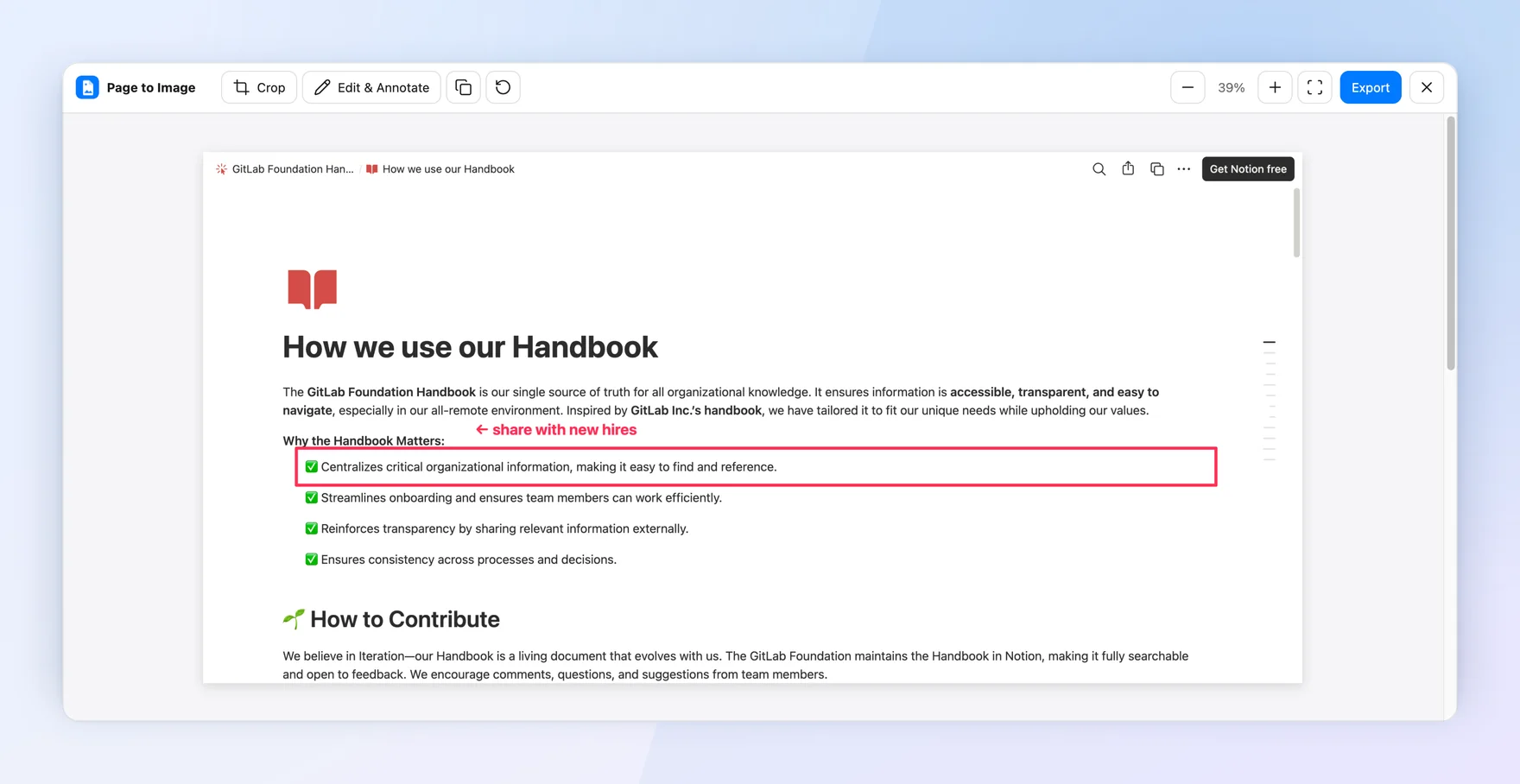
Capture review showing the public GitLab Foundation handbook page on Notion with one checklist item outlined and labeled “share with new hires”
The GitLab Foundation’s public Notion handbook, captured and annotated in Capture review.

Common questions

Can Snipping Tool take a scrolling screenshot?

No. Snipping Tool captures what is visible on screen. Use a browser’s full-page option or an extension for long webpages.

What is the shortcut for a full-page screenshot in Edge?

Press Ctrl+Shift+S to open Edge’s Screenshot tool, then choose the full-page option.

Can I save a full webpage as a PDF on Windows?

Yes. Print to PDF with Ctrl+P keeps selectable text but changes the layout. Page to Image exports an image-only PDF that matches what you see on screen.

Is Page to Image free?

Every installation includes 9 free captures with every feature. After that, annual access or a one-time lifetime purchase unlocks unlimited captures.

Official sources

Published by Page to Image. Product names belong to their respective owners.