
How to save a webpage as a PDF that looks like the page

There are two kinds of webpage PDF. A printed PDF reflows the page for paper and keeps text you can select. A visual PDF keeps the page exactly as it looked on screen. This guide explains the difference and how to make each one.

Option 1: Print to PDF

Press Ctrl+P on Windows or Cmd+P on Mac and choose Save as PDF as the destination. Browsers apply the site’s print styles, split the page into paper-sized sheets, and often drop backgrounds, sidebars, or interactive parts. The result is searchable and lightweight, which makes it a good fit for articles, invoices, and receipts.

Option 2: Save a visual PDF

Capture the page with Page to Image, then choose PDF in the Export dialog. The PDF contains the capture as images, so layout, colors, charts, and code blocks look exactly as they did on screen. Long captures are split across PDF pages automatically, and very tall pages keep their full resolution. Text in a visual PDF is part of the image and cannot be selected or searched.

Crop and mark it up first

Before exporting, crop out navigation and footers, add arrows or short notes, and blur personal details. Edits are applied to the exported PDF, while the original capture stays unchanged until you export again.

Which PDF should you make?

Choose Print to PDF when you need searchable text or a small file. Choose a visual PDF for design reviews, evidence of how a page looked, dashboards, and pages whose print layout is broken or missing. Keep the page URL and the date with the file when you might need to check the source later.
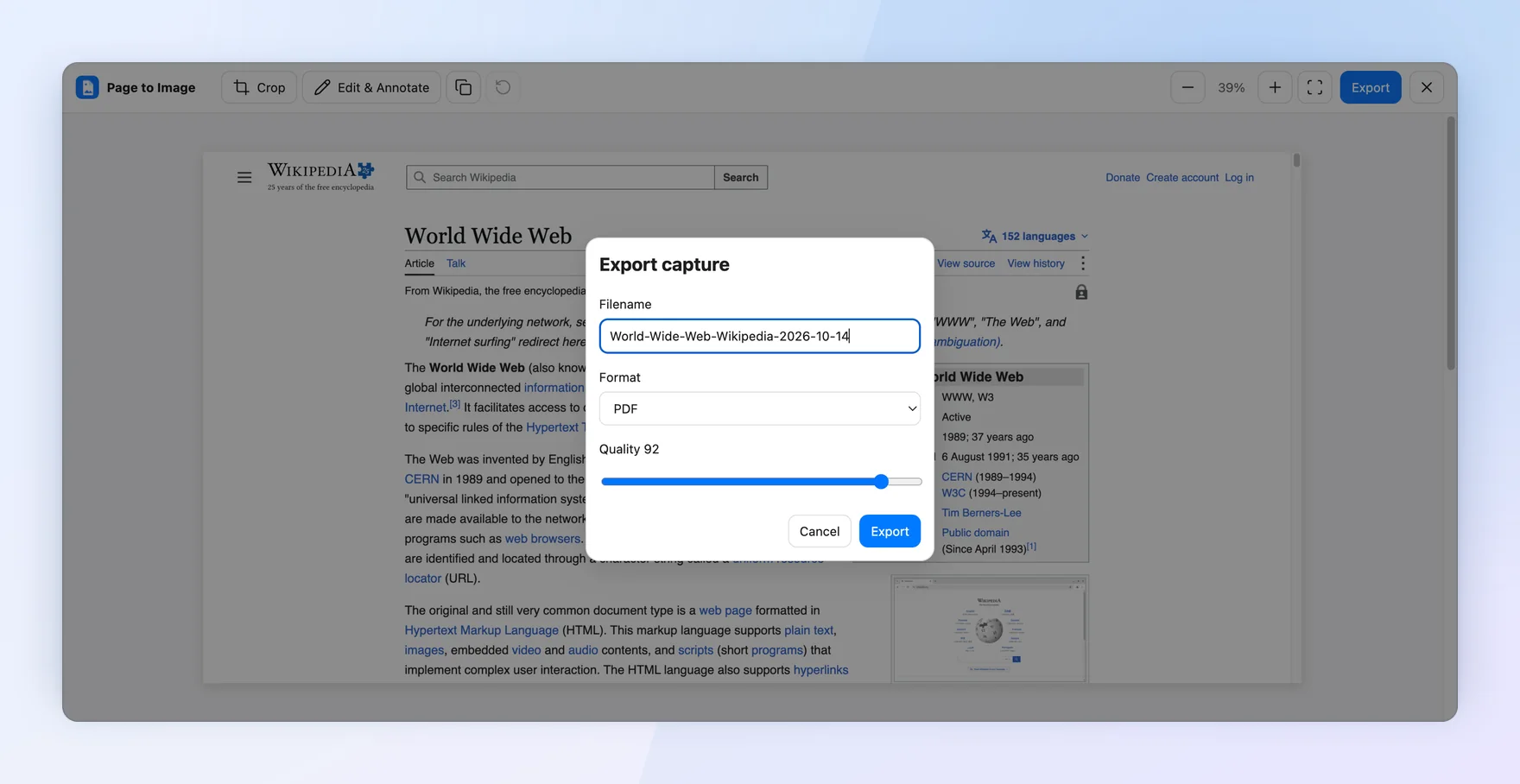
The Export capture dialog in Page to Image with a filename prefilled from the page title and date, and PDF selected as the format
Export the capture as PNG, JPEG, or PDF. The filename is prefilled from the page title and date.

Common questions

Why does my printed PDF look different from the webpage?

Print to PDF uses the page’s print styles and paper size, so layouts, backgrounds, and menus can change. A screenshot-based PDF keeps the on-screen layout.

Is the text in a Page to Image PDF searchable?

No. Page to Image exports the captured image into the PDF. It does not run OCR, so text is not selectable or searchable.

Can I save only part of a webpage as a PDF?

Yes. Use Selected area, or capture the full page and crop it in Capture review before exporting PDF.

Is Page to Image free?

Every installation includes 9 free captures with every feature. After that, annual access or a one-time lifetime purchase unlocks unlimited captures.

Official sources

Published by Page to Image. Product names belong to their respective owners.