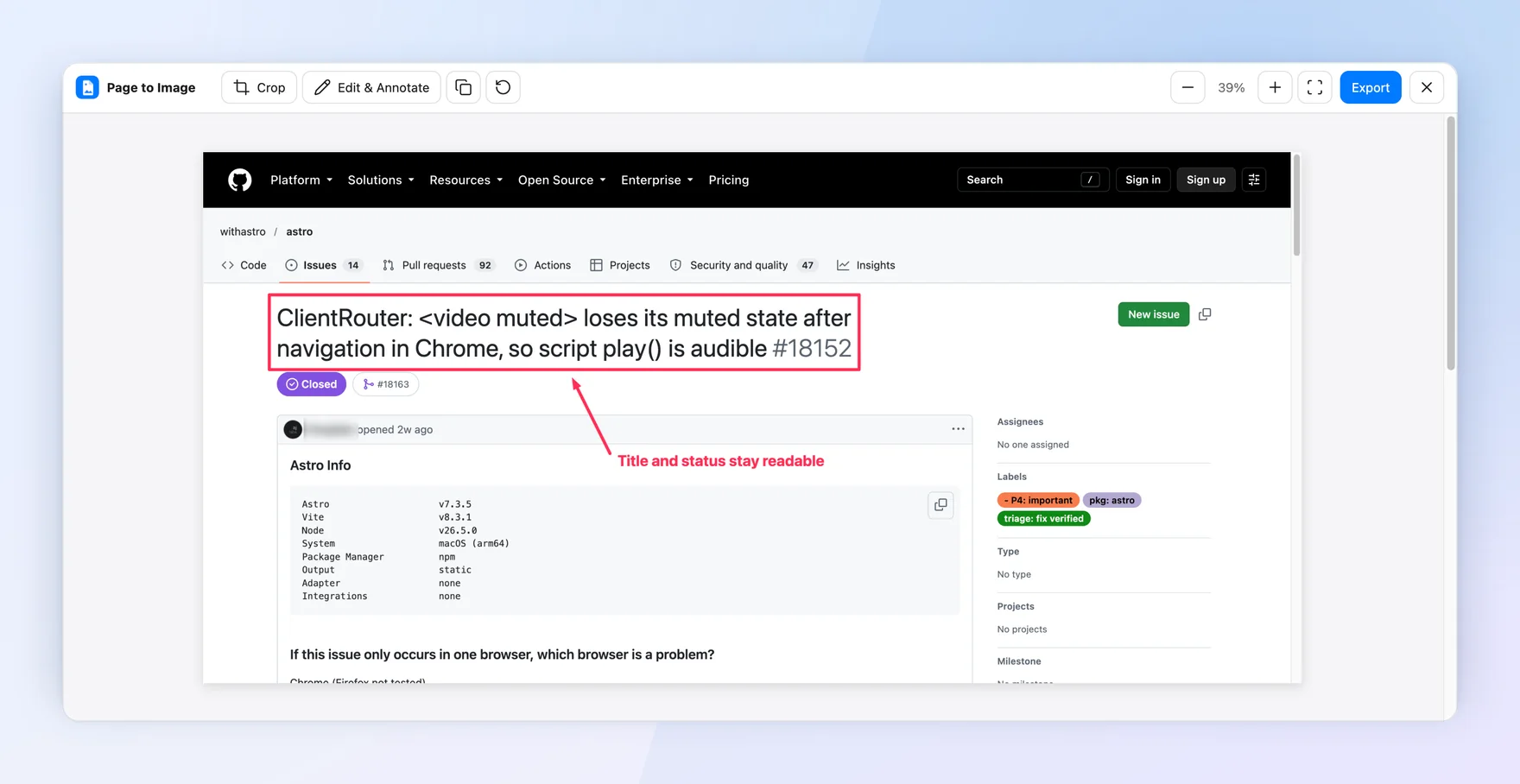
Screenshots often include more than you meant to share: names, email addresses, order numbers, or access tokens. Here is how to hide them in a webpage capture before the file leaves your computer.
Open the page and capture the full page, the visible area, or a selection with Page to Image. The capture opens in Capture review on your computer; nothing is uploaded.
Blur or erase the details
Choose Edit & Annotate, pick the Blur tool, and drag over each detail you want to hide. Blur keeps the layout recognizable while making the text unreadable. For text that must be fully removed, use the eraser to clear those pixels, or crop the area out completely.
Check what is left
Zoom in before exporting and look for repeated details: a name in the header, an email in a sidebar, or an account number in a URL. Remember that a screenshot can include browser content you scrolled past during a full-page capture.
Export the redacted file
Export PNG, JPEG, or PDF. Blur and other edits are flattened into the exported file, so the hidden details are not stored in layers that someone could remove.
Blur a username before sharing. The issue title and status stay readable.
Common questions
Is blur safe for passwords and tokens?
For secrets such as passwords, API keys, or one-time codes, crop them out or erase them instead of blurring, and rotate any secret that was already shared.
Can someone remove the blur from my exported image?
Edits are flattened into the exported pixels, so there is no separate layer to remove. Heavy blur over short text is hard to reverse, but cropping or erasing is the safest choice for critical data.
Are my screenshots uploaded for editing?
No. Capture, editing, and export happen locally in your browser.
Is Page to Image free?
Every installation includes 9 free captures with every feature. After that, annual access or a one-time lifetime purchase unlocks unlimited captures.