Method 1: Use Take Screenshot
Right-click an empty part of the page and choose Take Screenshot. In the bar at the top of the page, choose Save full page, then download the image or copy it to the clipboard. You can also click a single element on the page to capture just that part, or drag to select an area.
What the built-in tool does not do
Firefox Screenshots saves an image without an editor, so cropping, arrows, text notes, or blurring need another app. It captures the main document, so content inside a panel that scrolls on its own, such as a chat window or a document editor, may not appear in full.
Method 2: Use Page to Image for Firefox
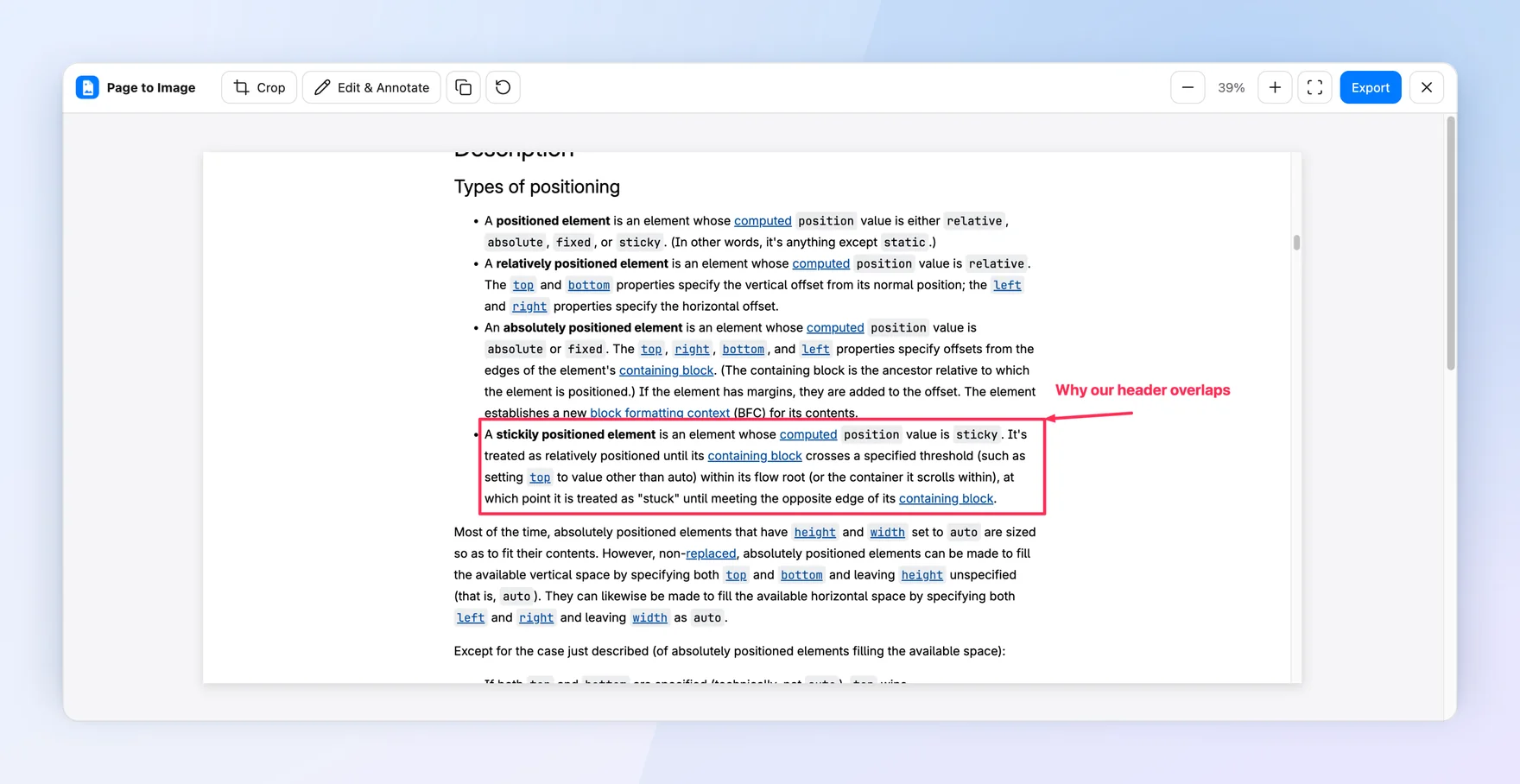
Page to Image is available from Firefox Add-ons. Choose Full page, Visible area, or Selected area. After capture, Capture review lets you crop, add text, arrows, and shapes, blur sensitive details, and export PNG, adjustable-quality JPEG, or PDF. Inner scrolling areas are followed, and very tall pages keep their resolution.
Tips for a complete capture
Scroll to the bottom once so lazy-loaded images appear. Close or dismiss overlays you do not want in the file, or turn on Hide sticky elements in Page to Image for supported fixed headers and floating buttons. For an article you want to read later as text, Reader View plus Print to PDF can be cleaner than a screenshot.