Capture the part of the page you need
Install Page to Image and open the page. Choose Full page for everything from top to bottom, Visible area for the current screen, or Selected area to drag a rectangle around one section. Press Capture page, and the result opens in Capture review.
Choose PNG or JPG
PNG keeps text and interface edges sharp and is the best default for screenshots. JPG makes smaller files for photo-heavy pages; Page to Image lets you adjust JPG quality before saving. For very long pages, PNG keeps the full resolution and can be saved as one tall image or numbered parts when a single file would be too large.
Clean up before you save
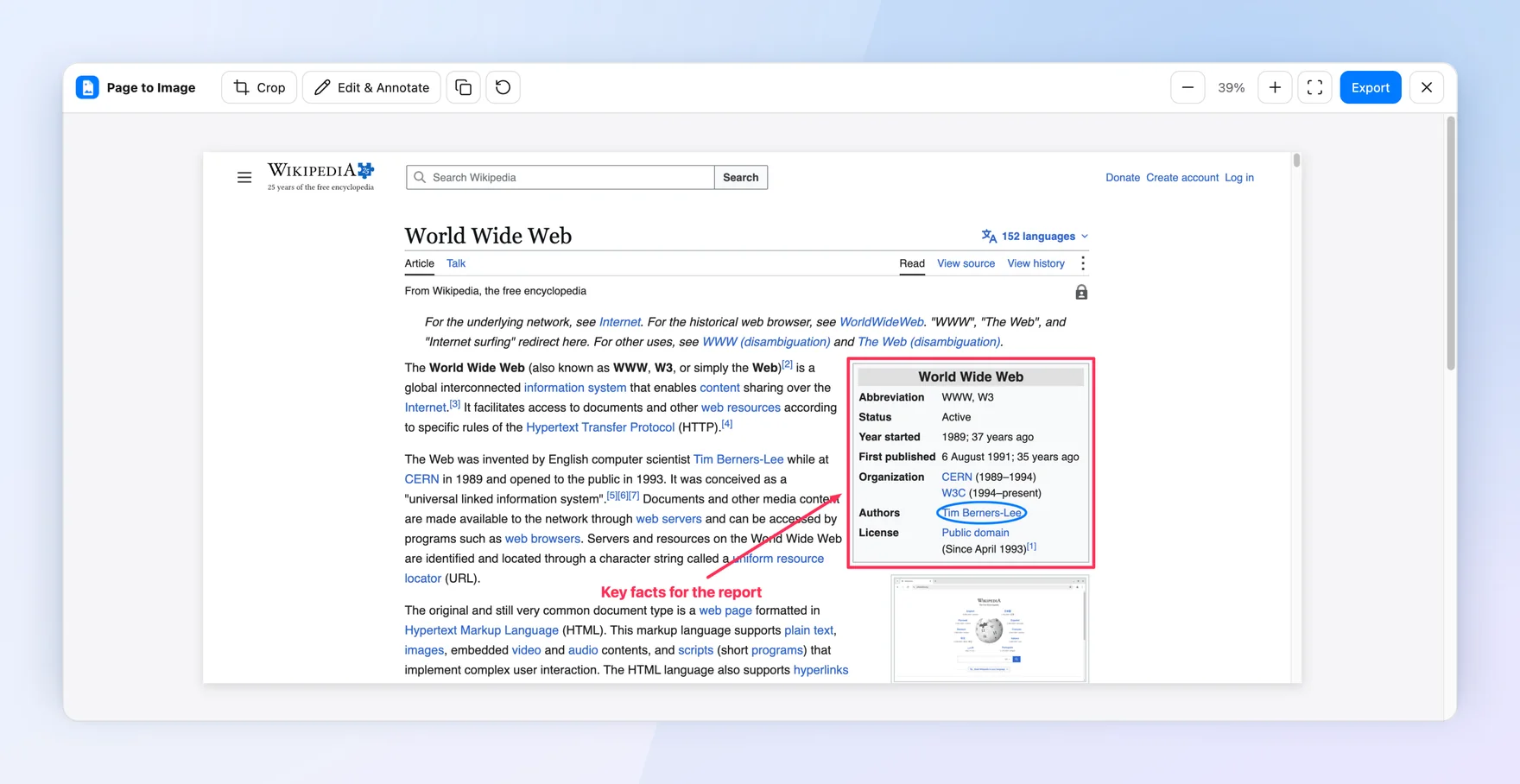
Crop away navigation and empty space, add arrows or short labels, and blur names, emails, or account numbers. Then copy the image to the clipboard or export it to your Downloads folder with a filename based on the page title and date.
Avoid common problems
Scroll to the bottom first so lazily loaded images appear. Turn on Hide sticky elements for supported fixed headers and floating buttons that would otherwise cover the content, and check banners that some sites keep on screen. If text looks soft, check the browser zoom level: captures use your display’s pixel density, so a 100% zoom on a high-resolution screen gives the sharpest result.