Page to Image focuses on capturing a webpage, refining the screenshot, and exporting a local file. Awesome Screenshot also covers screen recording and sharing workflows. Start with what you need to send: an annotated image, a PDF, or a video.
Local crop, text, drawing, shapes, arrows, blur, and erase
Annotation tools, with advanced features limited on the free plan
Video
Still screenshots; no screen recording
Screen and camera recording
Sharing workflow
Export a file or copy an image; attach it yourself
Save locally or upload to its cloud for editing and sharing; integrations are available
Paid options
Annual or lifetime access
Free plan and paid upgrades; check current plan limits
Vendor information checked September 20, 2026. Features and offers can change. See the official vendor sources below for current details.
When Page to Image fits
Choose Page to Image when your deliverable is a screenshot or PDF. Capture a page, hide supported overlays before capture, mark the detail, and export. You decide where to attach the resulting file. Capture and editing do not upload your screenshots.
When Awesome Screenshot fits
Consider Awesome Screenshot if your feedback needs screen or camera recording, cloud storage, or sharing integrations. It advertises connections with tools such as Trello, Slack, and Asana. Review plan limits for the recording and annotation features you need.
Choose the format that explains the issue
For a misplaced button, a cropped image with an arrow may be enough. For a long page review, save the whole page and mark the relevant section. For a sequence of interactions, video may explain more than a static image; Page to Image does not record that sequence.
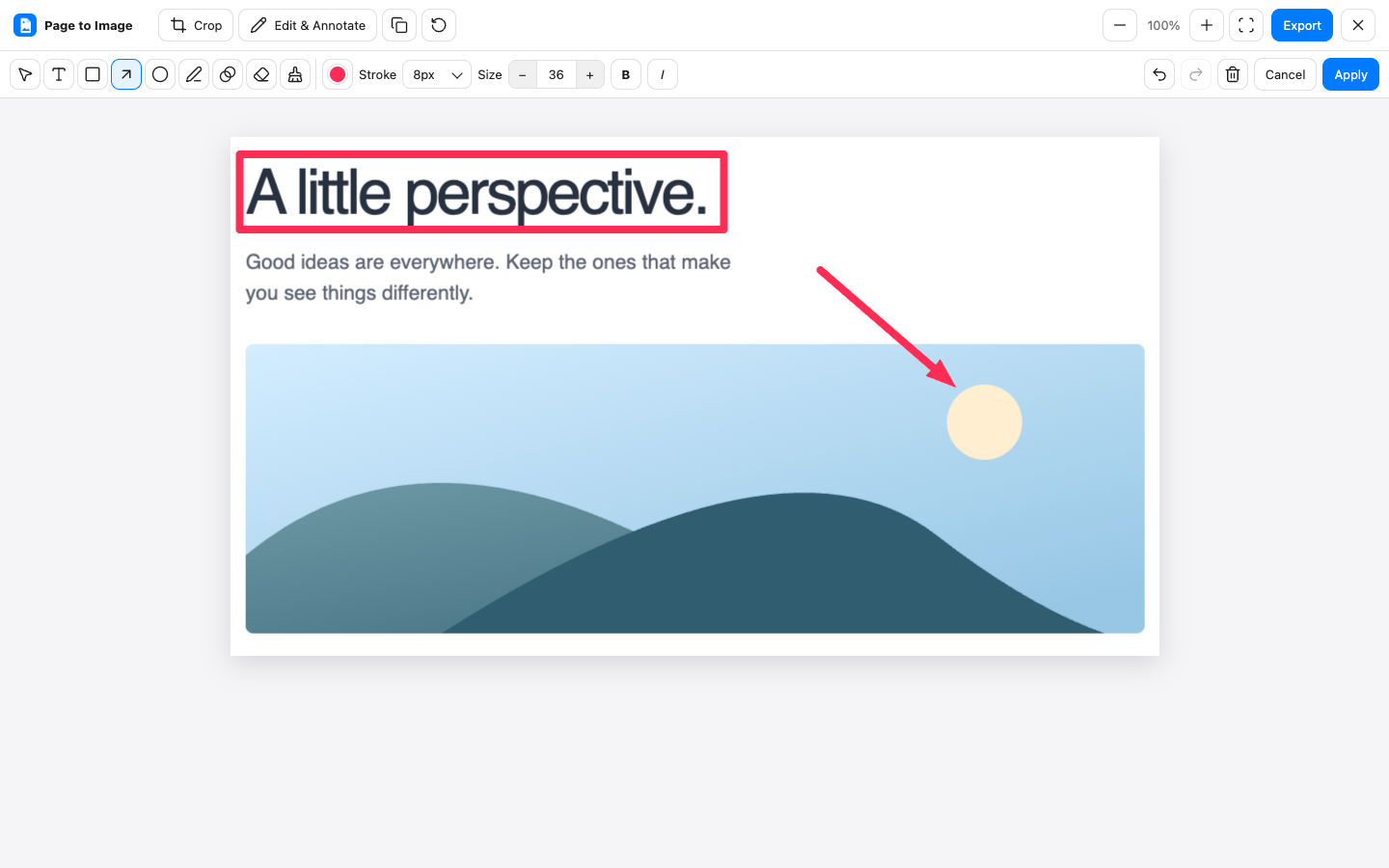
Crop, annotate, and export in Capture review.
Common questions
Can Page to Image replace a screen recorder?
No. It captures still images of webpages. Keep a recording tool if you need video, narration, or camera capture.
Does Page to Image create a hosted sharing link?
No. Save a PNG, JPEG, or PDF, or copy a supported capture to the clipboard. You can then share it through the tools you already use.
Is Awesome Screenshot available for free?
Yes. Its official help center describes a free plan with limits on advanced annotation, recording, and storage. Check its current pricing for the features you need.